Add page numbers
Stamp page numbers on every page.
To stamp page numbers on every page:
- Open Add page numbers from the tools list.
- Drop your PDF (or PDFs).
- Choose Position on the 6-cell grid (top left, top centre, top right, bottom left, bottom centre, bottom right).
- Choose Number style: 1, Page 1, 1 of 3, Page 1 of 3, or type your own under Custom ("Type your own: %p is the page number, %P the total pages.").
- Under More options: Number from page
[n]to page[m]("Leave "to page" empty to number up to the last page."), Start counting at (default 1), and Text size. - Click Add page numbers (or Add page numbers to
<n>PDFs).
What you'll see when it's done: the previewed page updates live as you change the options, showing the actual number in the position and style you chose. Once run, the finished file is listed with a Download button.
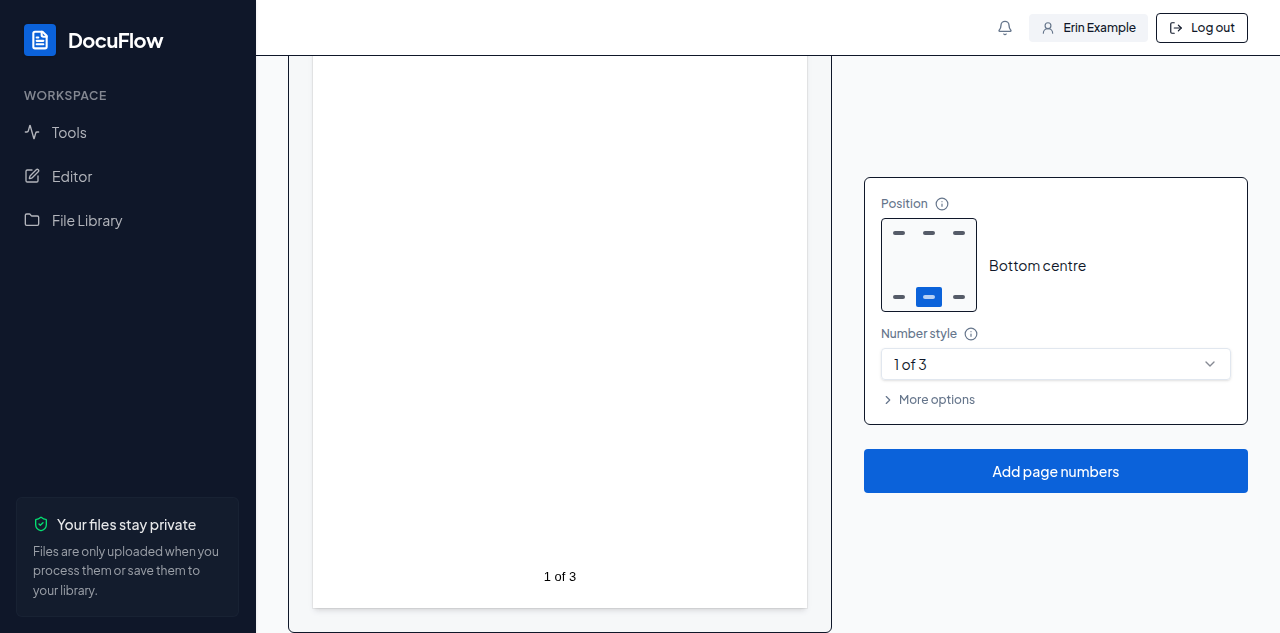 Figure: the page number shown on the page before anything is run.
If something goes wrong
"The 'to' page must be a whole number of 1 or more"; "The 'to' page can't come before the 'from' page"; "This PDF has only 1 page" (or "This PDF has <n> pages — choose a page from 1 to <n>") if your range doesn't fit the document. On the desktop app, offline, the button is disabled with "Needs an internet connection to add page numbers PDFs."