Sharing a file
Select the share icon on a row to open Share "<file name>".
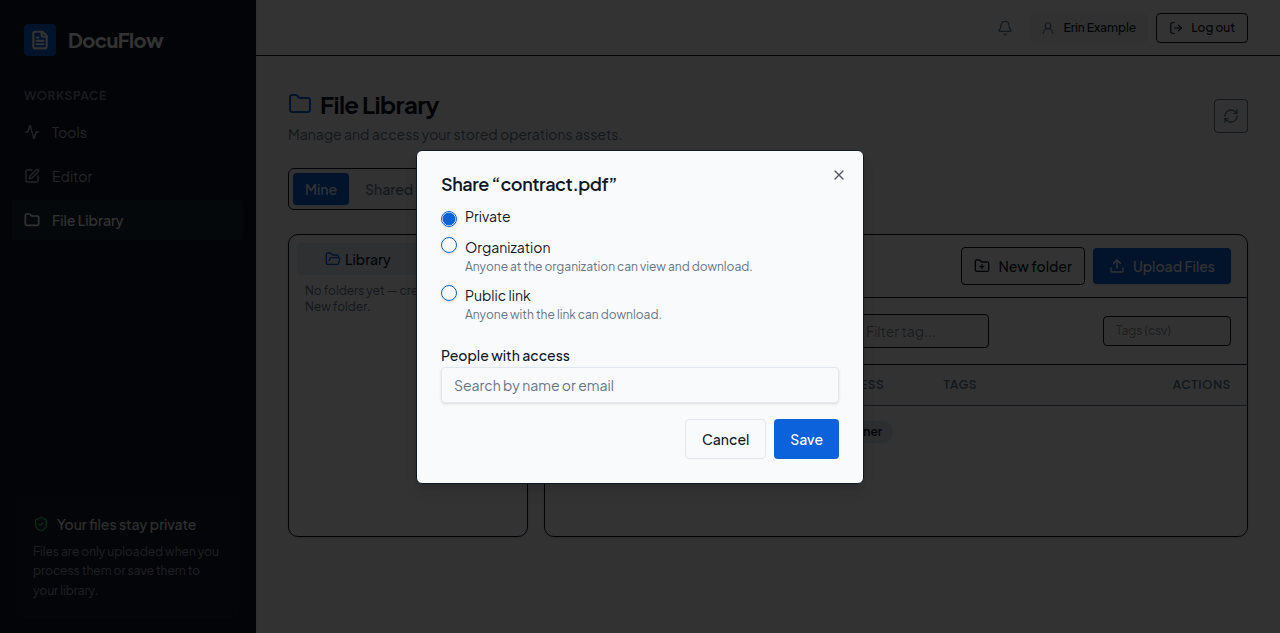 Figure: the Share dialog, open on a file.
Visibility (pick one):
- Private — no one else can see it.
- Organization — "Anyone at the organization can view and download."
- Public link — "Anyone with the link can download."
To share with specific people:
- Type a name or email into the People with access search box (placeholder "Search by name or email").
- Select the matching person from the results list — they're added as a chip below the box.
- Repeat for anyone else, then select Save.
There is no way to add someone by typing an email that doesn't match a real account — only people the search finds can be added. Remove a person by selecting the × on their chip, then Save.
If the people search isn't available:
- Without access to the directory at all: "You do not have access to the people directory, so people cannot be added here. Use a link or organization visibility instead."
- If the directory is temporarily unreachable: an error line followed by "People can't be added here until then; anyone who already has access keeps it, and you can still share with a link."
Public links and their expiry. Once you choose Public link (and you're allowed to manage it):
- If no link exists yet: "A link is created when you save" — pick how long it should last from the Expires choices (Never, 24 hours, 7 days, 30 days), then select Save. The new link is shown once, with the note "This link is shown only once — copy it now." — select Copy right away.
- If a link is already active: "Link is active — expires
<date>" (or "Never"). - If a link has expired: "Link expired — a new link is created when you save."
To revoke or replace a link:
- Select Revoke link to remove it entirely.
- Select Replace link… to make a new one — you're warned "This replaces the current link. Anyone using the old link loses access." before confirming with Replace link (or backing out with Cancel).
Copying the link. Select Copy next to the link field. You'll see a small confirmation "Link copied". If your browser won't let DocuFlow use the clipboard, you'll instead see "Press Ctrl+C to copy" with the link already selected for you — copy it that way instead.
If you can't manage the link: "You are not allowed to create or remove this file's public link. Sharing with named people still works; ask the file's owner for a link."
What a person you shared with can and cannot do. Someone added by name can view and download the file as the visibility you chose allows; they cannot change who else it's shared with or manage its public link unless you've separately given them that. Someone who only has a public link can download the file — nothing more, and they don't need an account or to sign in at all.
- If you're not the file's owner: "Only the owner can change this file."
- If the file changed underneath you: "The file was changed by someone else; reload and try again." — the dialog closes and the list refreshes.
- If an email address isn't valid: "Enter a valid email address."
- For anything else: "Failed to update sharing."