Folders
You can keep files in folders, and folders inside folders, the way you do on your computer. The top of your folders is called Library.
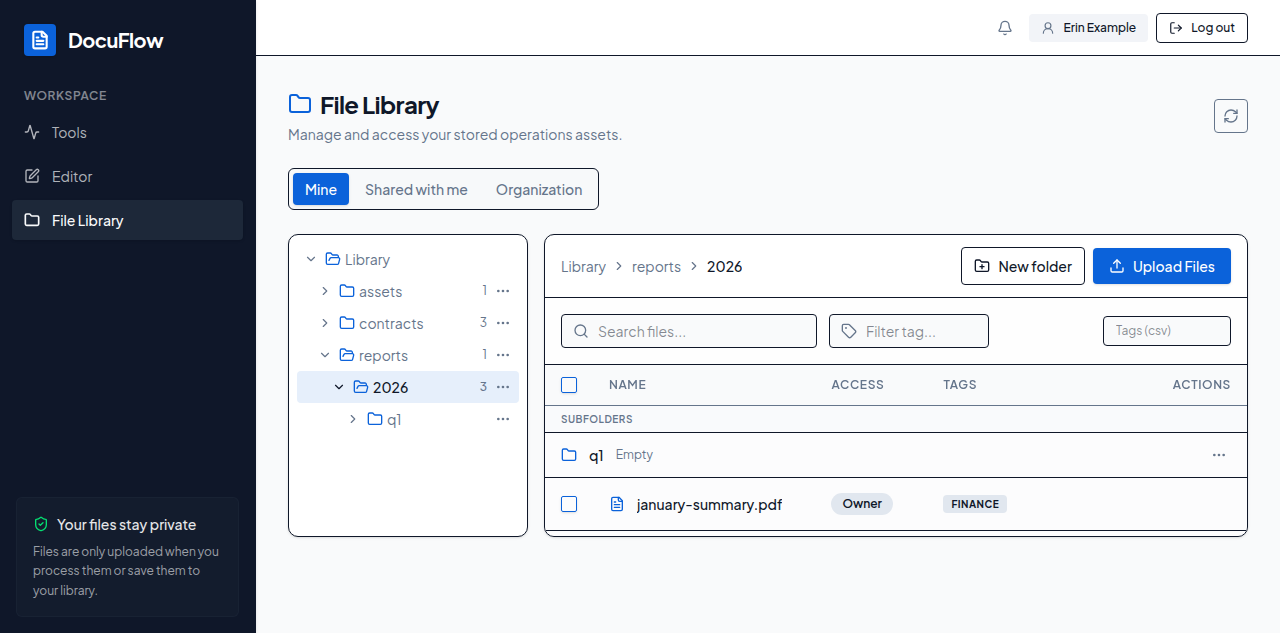 Figure: folders on the left, the open folder's files on the right.
- On Mine, Shared with me and Organization, the folders are listed on the left (on a laptop-sized screen or wider). Select a folder to open it; select the small arrow beside a folder to show or hide the folders inside it. The number beside a folder is how many files are directly in it.
- Above the table, the path of the open folder reads like Library › reports › 2026. Select any part of it to go back up.
- The table starts with the open folder's own folders, under "Subfolders", each saying what it holds — for example "2 files · 1 folder", or "Empty". Select one to open it. Its files come after them.
- Your browser's Back button returns to the folder you were in before, and the address in your browser opens that same folder again — you can bookmark a folder or send its link to a colleague (they see only the files they're allowed to see).
- With the keyboard, in the list of folders: the up and down arrows move between folders, the right arrow shows a folder's folders (and goes into them), the left arrow hides them (or goes up), and Enter opens a folder.
- On screens narrower than a laptop (phones and tablets) the list is hidden: select Folders beside the path to open it from the bottom of the screen; opening a folder closes it again. On a phone, a long path keeps its first part and the last two, and … lists the folders in between.
- Archive has no folders: it lists everything kept behind, grouped by former owner, as described in The Archive tab.
- A folder saved by an older version of DocuFlow under a name today's rules don't allow, or would write differently (for example one with a backslash,
Clients\Acme, or one starting or ending with a space or a /), shows at the top of the list under that name, exactly as it was saved. You can open it and move its files somewhere else, but you can't rename it, delete it, make folders inside it or move files into it — and files you upload while it's open go to Library.
When there are no folders yet, the list says "No folders yet — create one with New folder." on Mine and "No folders here." on the other tabs. In a very large library it may also say "Some folders may not be listed. Use Search to find a file."
To make a folder:
- On Mine, open the folder the new one should go in — or stay at Library for the top.
- Select New folder. The "New folder" dialog says where it goes: "It goes inside
<folder>." or "It goes at the top of your library." - Type its name under Folder name and select Create folder (it stays greyed out until you type a name).
What you'll see when it's done: the dialog closes, the new folder appears in the table, and the line above the table reads "Created folder "<name>"."
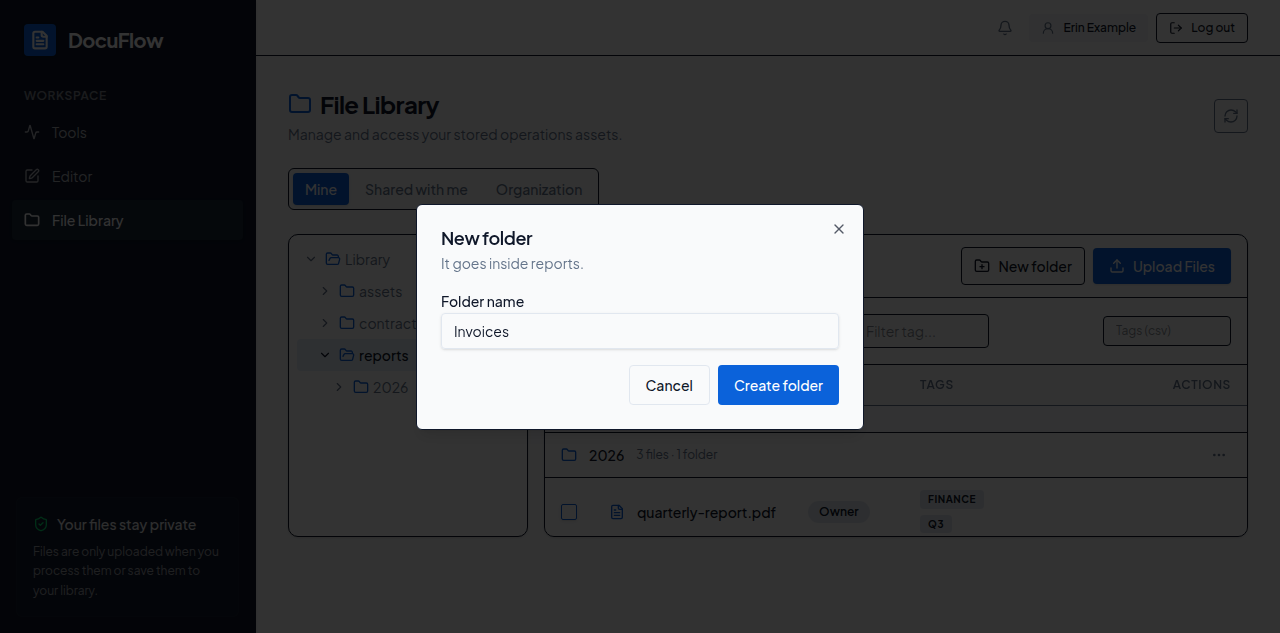 Figure: making a folder inside the one you have open.
To move files:
- Tick the box at the start of each file's row — or the box at the top of that column, "Select all files on this page". A bar takes the place of the search boxes: "
<number>selected", with Move to…, Delete and Clear. - Select Move to…. For a single file you can also use the Move to… button (the folder with an arrow) on its row. The dialog's title says what is moving: "Move 3 files", or "Move "contract.pdf"" for one file.
- Select the folder the files should go to. The folder they are in now is marked "Already here" and can't be chosen. The line "Destination: Library › …" shows exactly where they will go. Select New folder to make a folder inside the one you selected; it's selected for you.
- Select Move here.
You can also drag a file onto a folder in the list on the left, or onto a folder row in the table: the folder lights up and says "Move to <folder>" — let go to move it there. If the file is ticked, all the ticked files go with it. Dragging does exactly what Move to… does, and Move to… works with a keyboard or a touch screen.
What you'll see when it's done: the files leave the table and the line above it reads, for example, "Moved 3 files to reports/2026." If some files stayed where they were, the line adds why:
- "1 wasn't moved because you can't edit it." (or "2 weren't moved because you can't edit them.")
- "1 is no longer in your library." — it was deleted, or is no longer shared with you.
- "1 was changed by someone else; reload and try again."
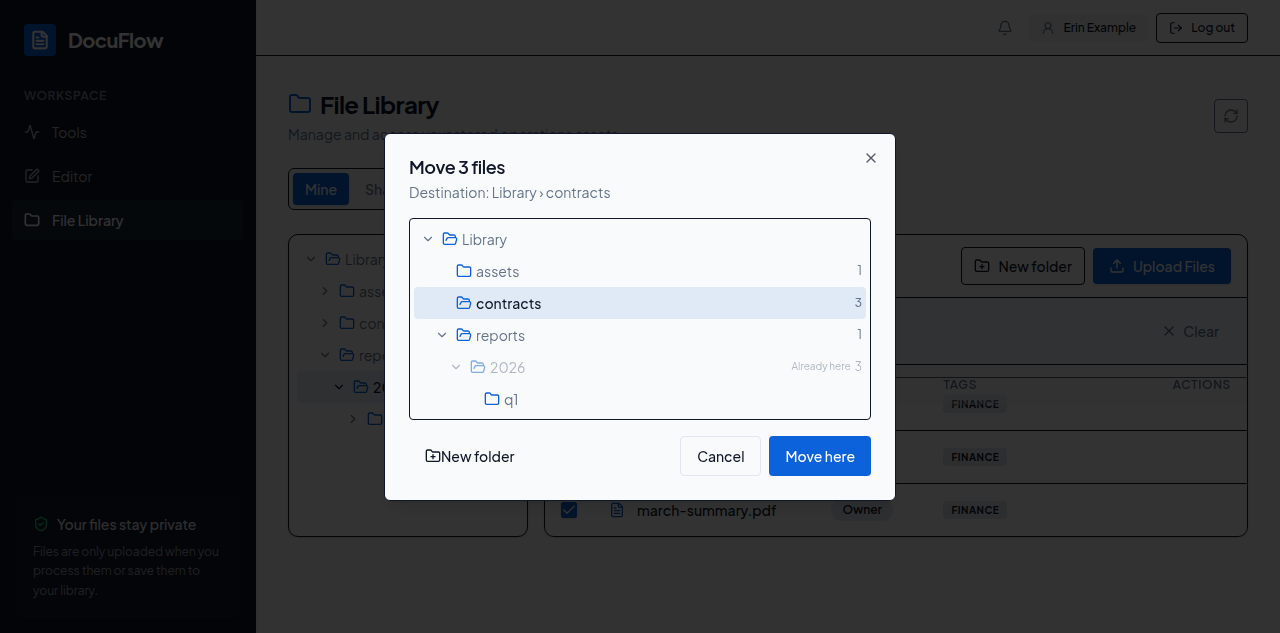 Figure: choosing where three selected files go.
To delete several files at once: tick them and select Delete in the bar. You're asked "Delete 3 files? This can't be undone." When it's done: "Deleted 3 files." — or, if one couldn't be deleted, "Deleted 2 files. 1 couldn't be deleted: <reason>".
To rename, move or delete a folder: on Mine, select ⋯ on the folder — on its row in the table, or beside it in the list on the left (in the list, Shift+F10 opens the same menu) — then:
- Rename — the "Rename folder" dialog shows the folder's name under Folder name; type the new name and select Rename (it stays greyed out until the name changes). What you'll see when it's done: "Renamed "reports" to "reports-2026"."
- Move to… — in the "Move folder "reports"" dialog, choose where the folder should go and select Move here; everything inside it goes too. The folder itself and the folders inside it can't be chosen. What you'll see when it's done: "Moved "reports" into archive." (or "Moved "reports" into Library.").
- Delete folder — you're asked "Delete the folder "q1" and any empty folders inside it? No files are deleted." Select Delete folder. What you'll see when it's done: "Deleted folder "q1"." Only a folder with none of your files left in it can be deleted: move or delete them first.
If a folder also holds files someone else put there that you aren't allowed to change, renaming or moving it moves only yours, and the line says how many stayed — for example "Renamed "reports" to "reports-2026". 12 files moved; 2 you can't edit stayed in "reports"."
Folders in Shared with me and Organization. These tabs show the folders the shared files sit in — someone else's folders — so they have no ⋯ menu and no New folder button. A folder itself is never shared: people see a folder only when they can see a file in it, so share the files you mean to share, as before.
Folders when you pick a file from your library. The From library button in the tools and the editor opens "Open from your library", which shows the same folders: the list on the left (on a wide screen), the path above the files, and the open folder's folders before its files — select one to open it, or a part of the path to go back up. It lists every file you can see, from all the tabs. Its Search your library box looks in the open folder and in every folder inside it. A folder with nothing in it says "This folder is empty.", and the next time you open the dialog it starts in the folder you used last.
Every message says what to change:
- "A folder name can't contain /. Open the folder first to make one inside it." — when renaming: "A folder name can't contain /. Use Move to… to put it inside another folder."
- "A folder name can't contain a backslash (). Use / to put a folder inside another."
- "A folder name can't contain hidden control characters."
- "A folder name can't be blank."
- "A folder can't be named "." or ".."."
- "Each folder name can be at most 80 characters."
- "Folders can go at most 10 levels deep."
- "A folder path can be at most 500 characters."
- "There's already a folder called "
<name>" here." — a folder with that name, or the same name in different capital letters, is already there. - "That's already the folder's name."
- "A folder can't be moved into itself."
- "There's no folder called "
<folder>" any more." — someone renamed or emptied it in the meantime; select Refresh (the circular arrow). - "This folder still has
<number>of your files in it. Move or delete them first." (with one file: "This folder still has 1 of your files in it. Move or delete it first.") - "This folder holds more than 5,000 files, too many to move at once. Move some of them into another folder first."
- "You are not allowed to create folders." or "You are not allowed to change folders." — your workspace is read-only, or your role doesn't allow it; ask your administrator.
- "The folders couldn't be loaded.", "The folder couldn't be created.", "The folder couldn't be renamed.", "The folder couldn't be deleted." or "The files couldn't be moved." — the connection failed before the server could say why; check your connection and try again.