Previewing a file
Select the eye icon on a row to see it without downloading it, in a panel beside the table (a full-screen view on a small screen).
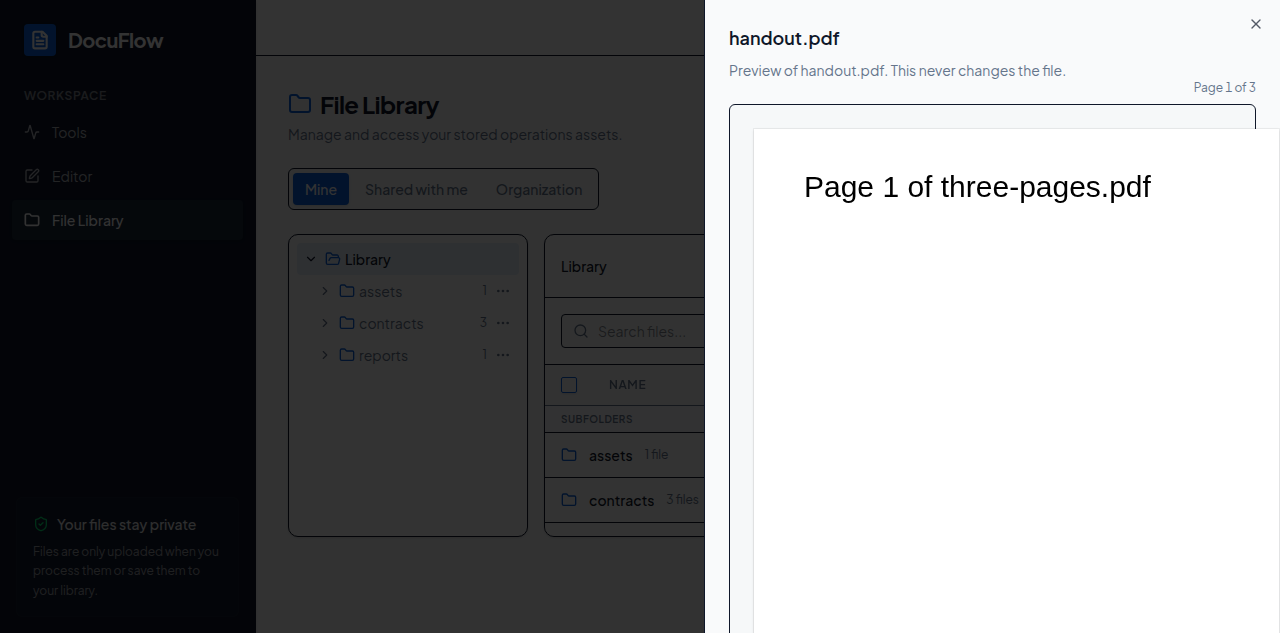 Figure: the preview panel, opened without downloading the file.
- A PDF or image appears right away.
- An Office file (Word, Excel, PowerPoint, OpenDocument, RTF) is converted to a PDF behind the scenes and shown the same way — this needs an internet connection, the same as the Word/Excel/PowerPoint to PDF tool. On the desktop app, whether the file only exists on this device or has already synced to your account, going offline shows "Needs an internet connection to preview this file." instead of trying and failing — a synced file's preview needs the connection too, exactly like a local-only one.
- Anything else shows "No preview for this kind of file."
- The panel has its own Download button, Share if you're allowed to, and Transfer if you're allowed to move the file to someone else.
- Previewing never changes the file.