The file table
Columns are a tick box (for selecting files), Name, Access, Tags, Size, Date and Actions. Size and Date need a wide window: in a narrower one they are left out, so every file's buttons stay in view beside the folders. The Folder column appears while you search or filter, and on the Archive tab.
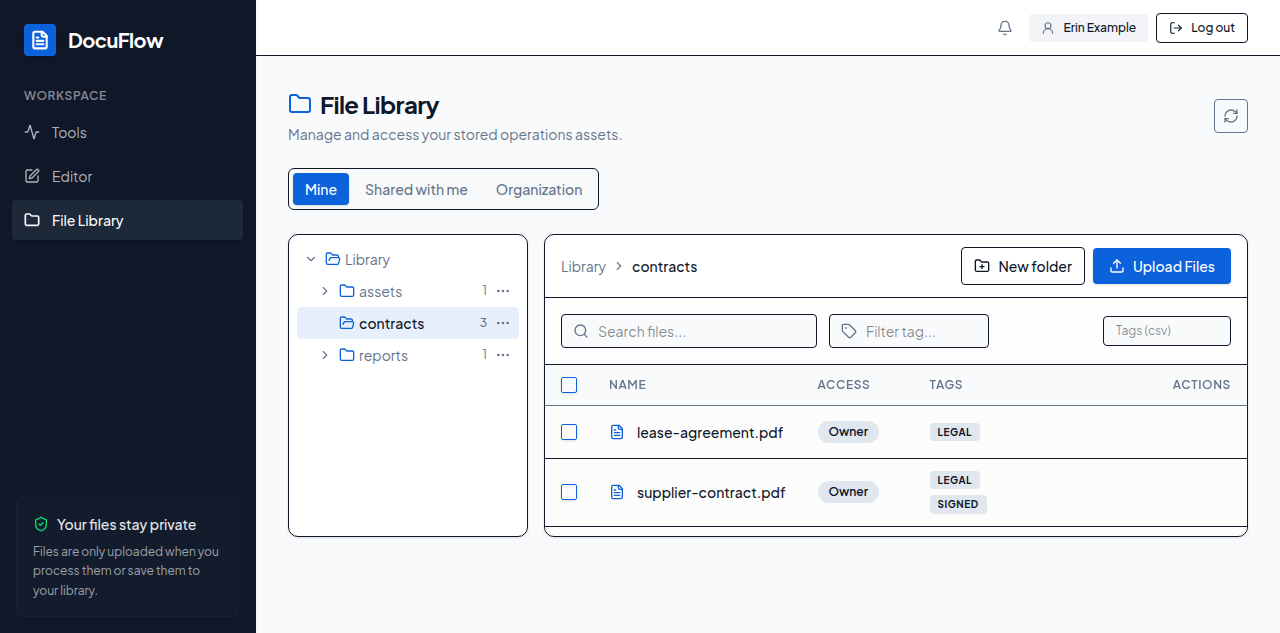 Figure: the file table on the Mine tab.
Access badges, shown under the file name area:
- Owner — you own this file.
- Shared — someone shared this file with you.
- Public — anyone with its link can download it.
- Org — shared with your whole organisation.
- Service — created by DocuFlow itself rather than a person.
- Archived — shown only inside the Archive tab, for a document whose owner's account was removed.
If a file is shared with named people, a small note "shared with <number>" appears under its badge.
A document whose owner's account was removed keeps its normal badge everywhere outside the Archive tab — a file shared with you still shows Shared, for example — but a small muted line appears under its name: "<owner's name>'s account was removed". Inside the Archive tab itself the badge switches to Archived, and the group header above the file already says who and when.
A link icon next to a file's name means it currently has an active public link — you'll only see this if you're allowed to manage that link.
Row actions appear only when you're allowed to use them, so if you don't see a button, you don't have that right on that particular file:
- Preview (the eye icon) — opens the file without downloading it: a PDF or image shows directly, an Office file (
.docx.xlsx.pptxand friends) is rendered through the same converter Word/Excel/PowerPoint to PDF uses, and anything else shows "No preview for this kind of file." Only shown for a file you may download. - Download — gets you the file.
- Share (the share icon) — opens the sharing dialog (see Sharing a file). Never shown for a file that only exists on this desktop device, since sharing needs the online engine.
- Transfer ownership (the two-arrow icon) — opens a small dialog to give the file to someone else. Search for them by name or email, and once you pick someone the dialog shows "Give
<file>to<name>? You'll keep access only if it's shared with you." before you confirm with Transfer. Never shown for a file that only exists on this desktop device, since it has no remote owner yet to move. - Move to… (the folder with an arrow) — moves the file to another folder (see Folders). Shown when you may edit the file.
- Edit metadata (the pencil icon) — opens Edit File Details, with Filename, Folder and Tags (comma separated), and Cancel / Save Changes buttons. Folder is a button showing where the file is, for example "Library › reports": select it to choose another folder in the same dialog as Move to… (titled "Choose a folder"), then Choose this folder. Only a folder you change is saved: renaming a file or changing its tags leaves it where it is.
- Delete (the trash icon) — asks "Are you sure you want to delete this file?" before removing it.
To edit a file's details:
- Select the pencil icon on its row.
- Change Filename and/or Tags; to change the folder, select the Folder button, choose a folder and select Choose this folder.
- Select Save Changes (or Cancel to back out without saving).
What you'll see when it's done: the dialog closes and the row shows your changes.
If the file changed on the server since you opened the list — someone else edited or deleted it, or a share changed its ownership — the edit dialog closes and you'll see "The file was changed by someone else; reload and try again." The same sentence appears if this happens while deleting.
Paging
When there are more files than fit on one page, a footer reads "Showing <first>–<last> of <total> files" with Previous and Next buttons. It only appears once there's more than one page's worth of files to show.