Add watermark
Stamp text or a logo onto every page.
To stamp a watermark onto every page:
- Open Add watermark from the tools list.
- Drop your PDF (or Choose files / From library) — add more with Add more.
- Type your text into Watermark text (placeholder "e.g. CONFIDENTIAL"), or attach a Watermark image (optional).
- Adjust Opacity — lower is fainter.
- Under More options: Text size ("In points. Leave empty to fit the page.").
- Click Add watermark (or Add watermark to
<n>PDFs).
What you'll see when it's done: the watermark is drawn over the page exactly as it will look, live as you type or move the sliders — before you run anything. Once run, each file's row offers Download, Save to library, Open in editor for one file, and Start over.
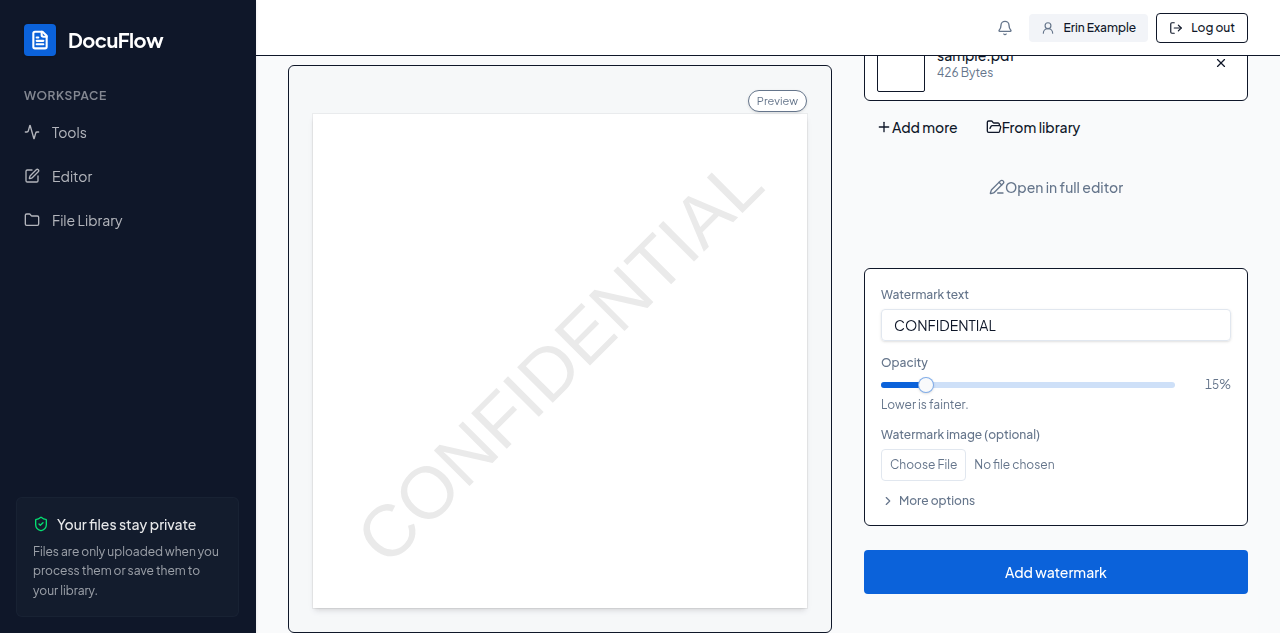 Figure: the watermark, shown exactly as it will look, as soon as it's typed.
"Add watermark text or choose an image" if you've set neither. Add watermark works without an internet connection on the desktop app.
To combine a watermark with other changes on the same file in one export, click Open in full editor below the file instead of running this page on its own — that opens the same Watermark step inside the full editor's Changes tab.