PDF to Word (best effort)
Turns a PDF into an editable Word document. The page states plainly: "Best effort — layout may differ."
To convert a PDF to Word:
- Drop your PDF, or use Choose file or From library.
- Files up to 25 MB convert automatically; over that, select Convert to Word.
What you'll see: under the cap, the page previews what the Word file will look like once converted — it's rendered back to a PDF automatically so you can check it before you rely on it — while the Download <file>.docx button is ready right away. If that rendered preview itself can't be built, you'll see "Preview isn't available for this file — the download still works." Pick a scanned PDF (no text layer) and you'll see "This looks scanned — run OCR first for editable text" the instant you pick it, in the preview area — over 25 MB the same warning appears in the file's info card instead, which also always notes "Layout may shift slightly in conversion." Either way, run OCR (make searchable) first; converting a scan anyway ends with the engine's own "This PDF has no text to convert. Run OCR (make text searchable) first." A Save to library checkbox (off by default) keeps the converted Word file in your File Library too, alongside the download.
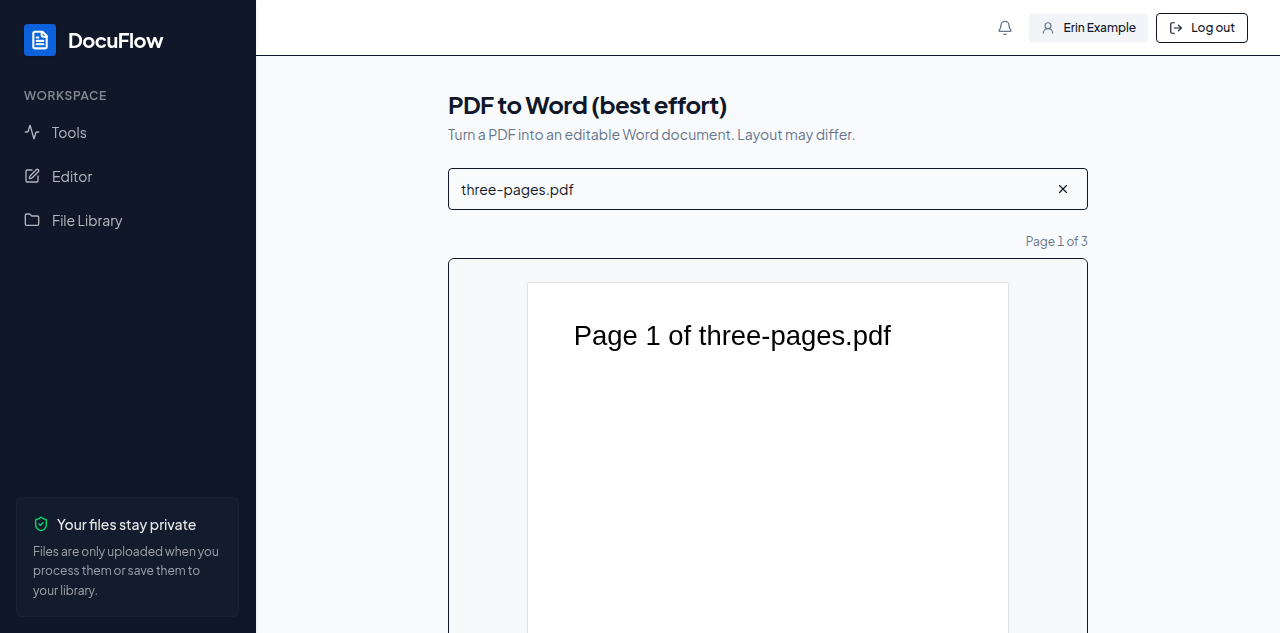 Figure: the Word result, previewed before it's downloaded.
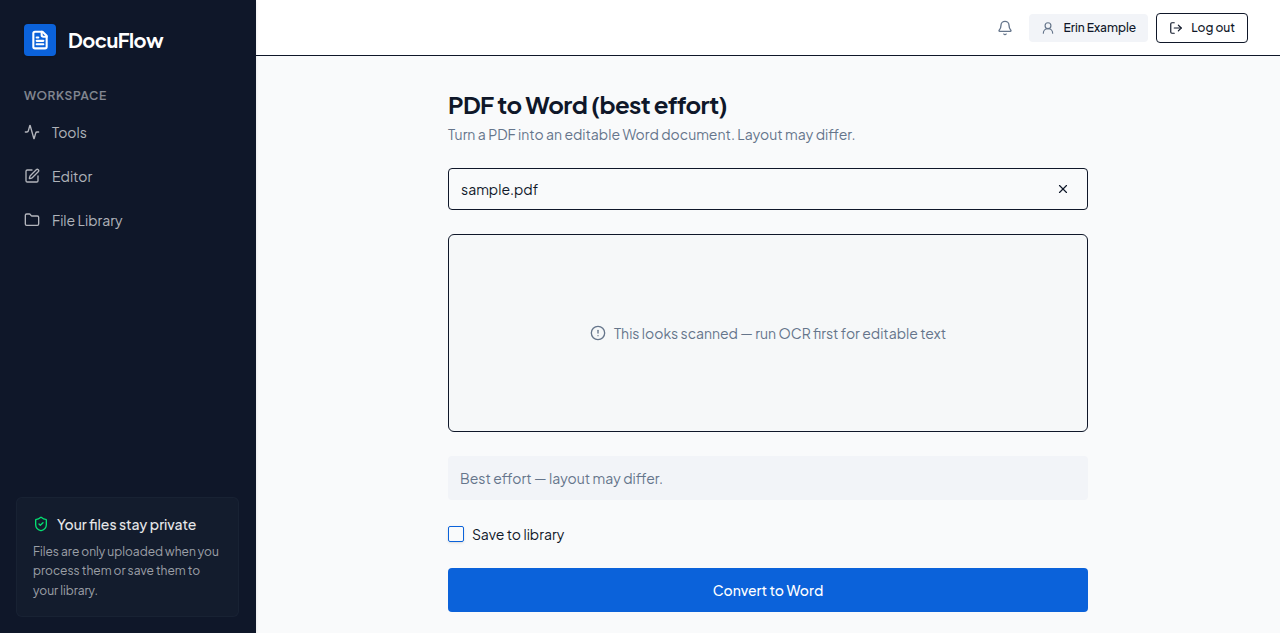 Figure: what a scanned PDF (no text layer) shows instead of a preview.
The reason appears under the button. If ticking Save to library fails, you'll see "Couldn't save to the library — the download still worked." — the download itself already succeeded.