Word/Excel/PowerPoint to PDF
Turns a Word, Excel, PowerPoint, OpenDocument, RTF or text file into a PDF.
To convert an Office file to PDF:
- Drop your file, or use Choose file or From library.
- Files up to 25 MB convert automatically the moment you drop them — no button needed. Over 25 MB, the preview shows the file's type and size and a note: "Layout may shift slightly in conversion", plus "Files over 25 MB convert when you press the button."; select Convert to PDF to run it.
What you'll see: under the cap, the converted PDF appears right on the page — every page, scroll to see them all. The button reads Download <file>.pdf (Save <file>.pdf on desktop); selecting it delivers the exact bytes you just saw, no second wait. Over the cap, there's no on-page preview either before or after conversion — just the file's details and, once you convert, the download button. Either way, the page reminds you: "Conversions run through LibreOffice on the engine and can take a little while for large documents." A Save to library checkbox (off by default) keeps the converted PDF in your File Library too, alongside the download. Once the PDF is ready, an Open in editor button lets you fix a page in the full PDF editor right away, starting from the exact file you just previewed.
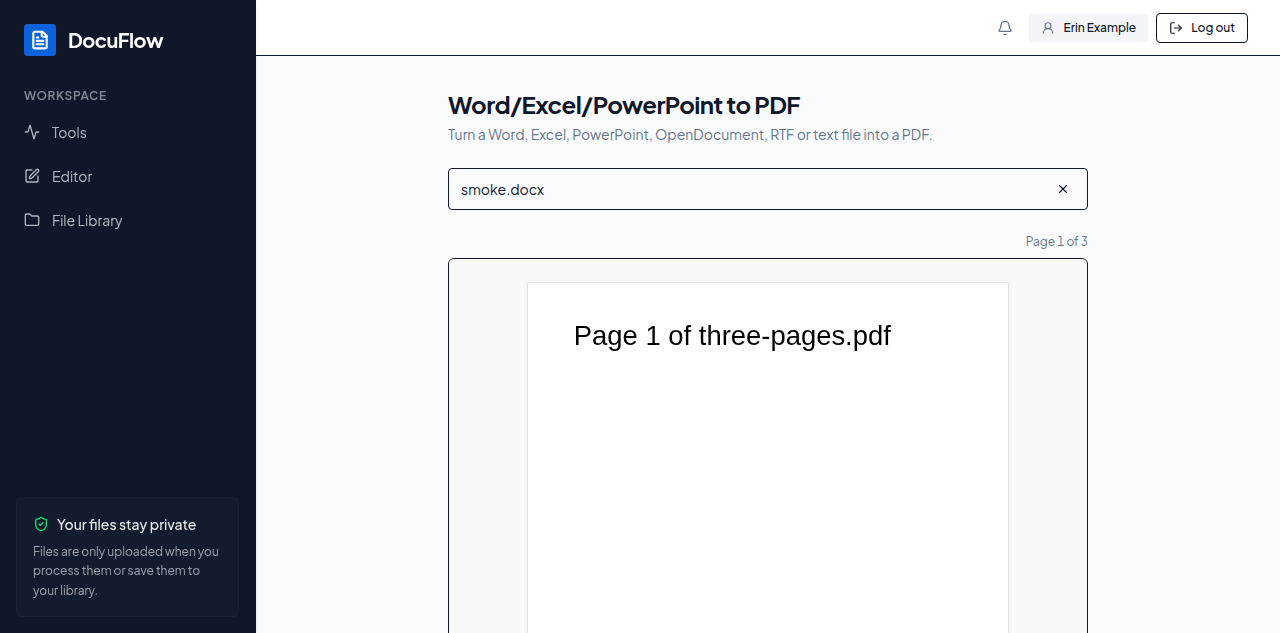 Figure: the Office file, already converted and previewed, before it's downloaded.
The reason appears under the button. If ticking Save to library fails, you'll see "Couldn't save to the library — the download still worked." — the download itself already succeeded.