PDF to images
Exports PDF pages as image files.
To export a PDF as images:
- Drop your PDF, or use Choose files or From library.
- Choose an Image format — PNG ("Sharp, larger files"), JPG ("Smaller files, best for photos") or WebP ("Small files for the web").
- Adjust Image detail — higher gives sharper, larger images.
- Optionally, under "More options", limit which Pages to export.
- Select Convert to images (or Convert
<n>PDFs to images with several files).
The preview shows the pages that will actually become images, updating as you change Pages.
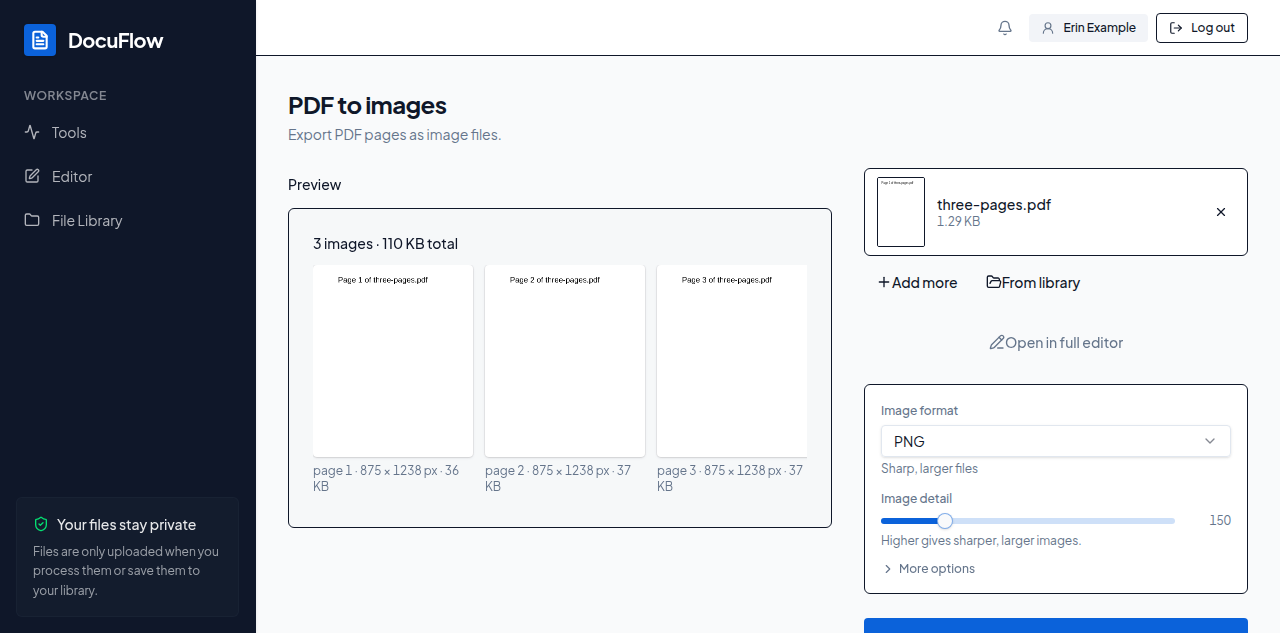 Figure: each page previewed as its own image, before conversion runs.
What you'll see when it's done: each converted file appears with a download button; a PDF of more than one page comes back as a single zip of images. Use Download all (.zip) with more than one result, Save to library, or Open in editor.
If something goes wrong
A failed row shows its reason with Try again.