Letter templates
Fills in an official letter from a template and shows it, laid out on an A4 page, as you type. Your office's templates live in DocuFlow: everyone in the workspace can use the workspace templates, you can make your own, and an administrator can make one of yours a workspace template.
To find it: on the Tools page, open the Documents category and select Letter templates. The Sifarish letters card under Nepal opens the same page showing only Sifarish templates.
To make a template of your own, or change one, see Making or changing a template (the builder).
Choosing a template
The page lists templates in up to four groups (a group with nothing in it is not shown):
| Group | What is in it |
|---|---|
| Workspace | Templates your organisation set up for everyone |
| Shared with me | Templates someone shared with you |
| Mine | Templates you made |
| Samples | Example templates that come with DocuFlow, marked Sample |
Each card shows the title — in Nepali and English when it has both, as "Nepali / English" — the letter's language and who it belongs to. Type in Search templates to narrow the list.
"No templates match your search." when nothing matches; "The letter templates couldn't be loaded. Try again in a moment." when DocuFlow can't reach the server.
Using a template
To write a letter:
- Select a template card.
- Fill in the form under Fill in the letter. A required field is marked; a hint under a field gives its help in both languages. To type in Nepali, see Typing in Nepali in any field.
- Watch the letter in Preview — it follows your typing.
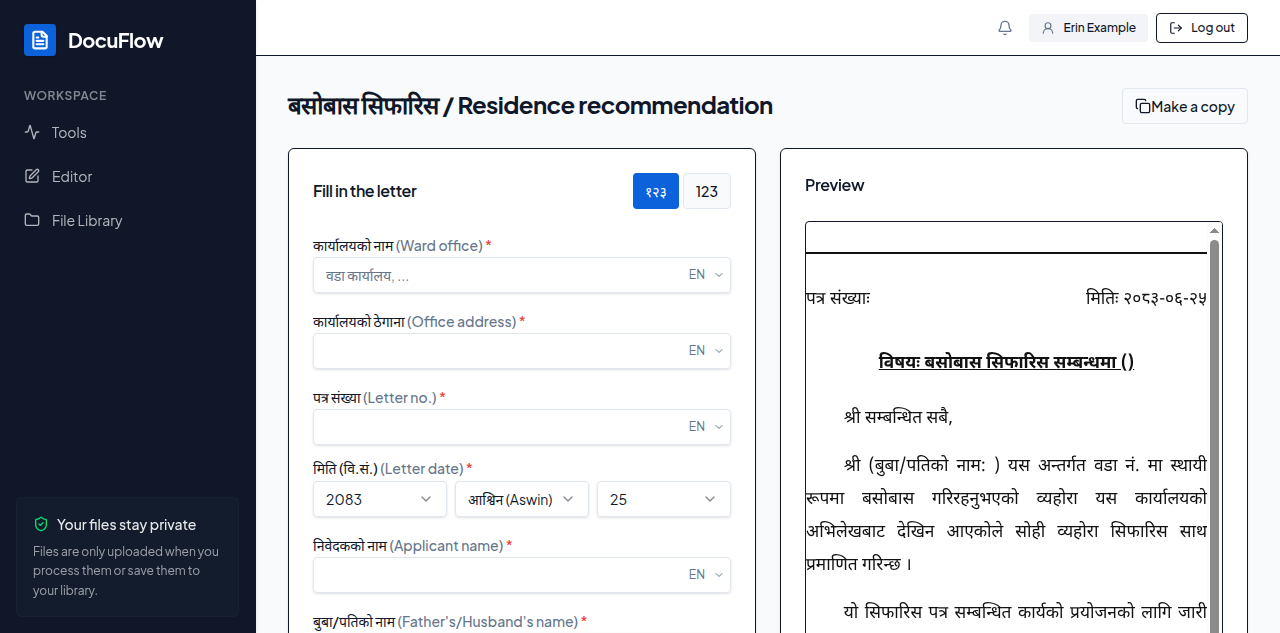 Figure: a template opened — the letter takes shape in the Preview panel as the form is filled in.
4. Choose how the letter number and date are written with the digits toggle: १२३ (Nepali digits) or 123.
5. Select Download PDF, Save to library, or Print.
Figure: a template opened — the letter takes shape in the Preview panel as the form is filled in.
4. Choose how the letter number and date are written with the digits toggle: १२३ (Nepali digits) or 123.
5. Select Download PDF, Save to library, or Print.
What you'll see when it's done:
- Download PDF: "
<name>.pdf was downloaded. Look in your browser's downloads." (on the desktop app: "Saved<name>where you chose."; if you close the save dialog: "Cancelled. The PDF was not saved."). - Save to library: "Saved
<name>to your file library." - Print: your browser's print dialog, with the letter laid out (on the desktop app: "Print from the window that opened.").
Notes you may see under the preview:
- "Your workspace has no letterhead yet, so this letter has none. An administrator can add one in Admin → Letters."
- "The workspace letterhead couldn't be loaded, so this letter shows without it."
- "The letterhead logo couldn't be loaded, so the letter shows without it."
- Required fields left empty: "Fill in the required fields to enable PDF."
- The Devanagari typeface is still loading: "Loading Devanagari font…"
- The server can't be reached: "Download PDF and Save to library each needs the online engine, which is unreachable right now — Print still works offline."
- The PDF couldn't be made: "The PDF couldn't be made." followed by the reason, or "Try again in a moment."
- The print window was blocked: "The letter couldn't be opened for printing. Allow pop-ups for DocuFlow and try again."
- The template was deleted: "This letter template wasn't found. It may have been deleted."
The Devanagari text is set in Noto Sans Devanagari, a font built into DocuFlow — nothing to install.
The two sample templates
DocuFlow comes with two Sifarish samples, बसोबास सिफारिस (residence recommendation) and चालचलन सिफारिस (conduct recommendation). Their wording is an example: make a copy and change it to your office's own text before real use.
Make a copy
Any template you can use can be copied into Mine, to change as you like. On the letter page, select Make a copy (in the builder it is in the More menu).
What you'll see when it's done: "Copy made" — "Change your copy as you like." — and the copy opens in the builder.
"Checking what you can do…" means DocuFlow is still finding out whether you may create templates — wait a moment. "DocuFlow couldn't check what you can do. Try again shortly." means that check failed; it is not a refusal.