Compress image
Makes a photo's file size smaller — by choosing a quality, or by typing the size a form asks for, such as "under 200 KB".
To compress an image:
- Open Compress image and add one or more pictures.
- Move Quality — lower makes a smaller file. It is hidden when the result will be a PNG, because a PNG gets smaller by using fewer colours instead.
- If a form asks for a photo under a certain size, type that number of KB in Keep under — for example 200. Leave it empty for no limit.
- Under Format, keep Same as original or choose JPG, WebP or PNG.
- Select Compress image (with several pictures it reads, for example, Compress 3 images).
| Option | What it does |
|---|---|
| Quality | Lower makes a smaller file. Starts at 70. |
| Keep under | In KB, e.g. 200. If lower quality isn’t enough, the picture’s width and height are reduced too. A picture that already fits the limit is never made smaller in width and height — it is saved once at your quality, or kept exactly as it is if that would not make it smaller. Empty means no limit; anything other than a whole number of KB shows "Enter a whole number of KB, such as 200." and the button waits. |
| Format: Same as original | JPG, PNG and WebP keep their format; other types become JPG |
| Format: JPG | Smaller files, best for photos |
| Format: WebP | Small files for the web |
| Format: PNG | Sharp, larger files. A PNG keeps its exact colours when it has few enough, otherwise it gets fewer colours. |
Before you press anything, the first picture is shown twice, Original and Compressed, with the new size under them, measured in your browser: for example "→ 180 KB (from 1.5 MB)". With Keep under set, the line says which quality got it there — "→ 196 KB at quality 40 (from 1.5 MB)" — and gives the new width and height if the picture also had to be made smaller. When the format changes, the line starts with it ("→ JPG · 180 KB (from 1.5 MB)"). A very large photo is measured on a smaller copy and says "about … (estimate, …)". If the picture can't get any smaller in its own format, you'll see "Already as small as it gets — your original will be kept". If even the smallest version is over your limit, you'll see "Even the smallest version is about 240 KB — try a higher limit." For a PNG result, and for pictures your browser can't open (HEIC, TIFF), the line reads "→ size available after compressing"; a PNG also shows "PNG pictures get smaller by using fewer colours, which this preview can’t show." The preview is a close estimate; the real size is shown when it's done.
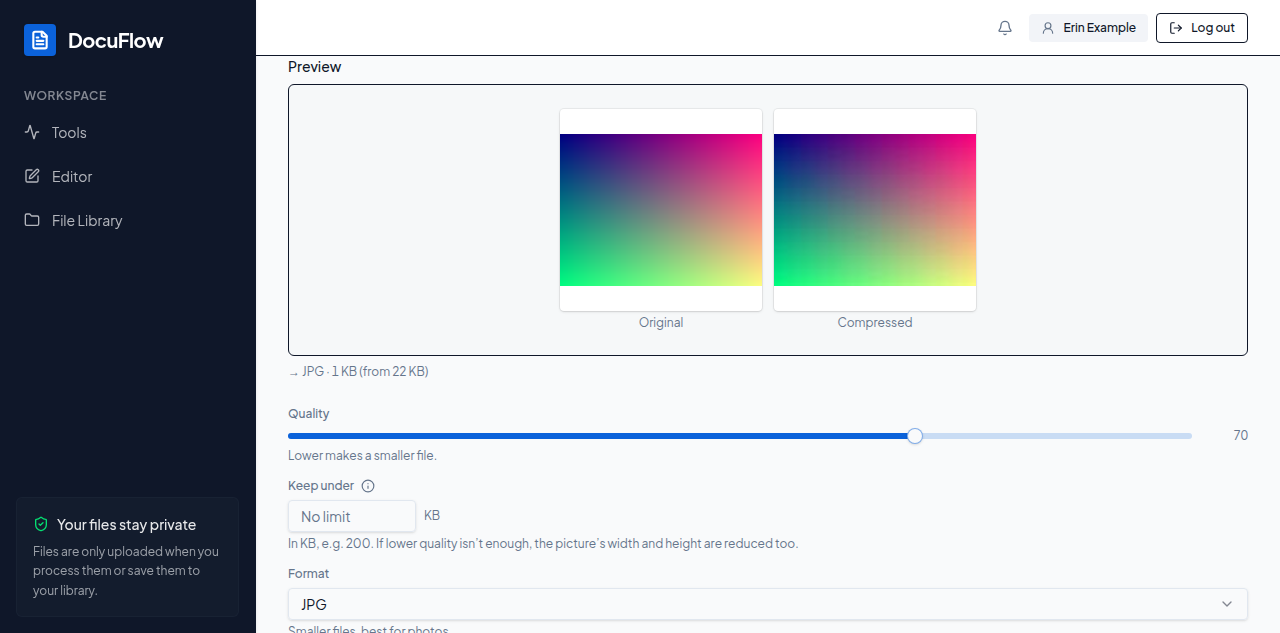 Figure: the photo before and after compressing, with the new size shown before anything is pressed.
What you'll see when it's done: "Done" (or, for example, "2 of 3 done") and one row per picture with the new file's name — for example "photo_compressed.jpg" — and its size before and after, such as "1.5 MB → 180 KB" with "−88%". Each row has Download (Save on desktop); with two or more pictures, Download all (.zip) saves them together. Save to library keeps the results in your File Library; Save to Google Drive and Save to OneDrive appear when they are connected; Start over clears the page. If a picture was already as small as it gets, its row says "Already as small as it gets — your original is returned." and the file is your original, unchanged.
When a picture can't fit your limit, its row says so in numbers — for example "This image can’t get under 5 KB — the smallest DocuFlow could make it is 9 KB." Try a higher Keep under. A HEIC/HEIF photo on an engine that doesn't support it shows "Something went wrong while processing this file.", and Details reads "HEIC input needs libheif on the engine." Select Try again on a failed row to send just that picture again.
Compressing saves the picture afresh, so it removes the photo details stored inside the file, such as the camera and the place it was taken. The desktop app compresses JPG, PNG, WebP, GIF and BMP pictures on your computer when you're offline or signed out. There, a HEIC or TIFF photo shows "This picture can’t be opened without an internet connection. Connect and try again, or choose a JPG, PNG or WebP." Choosing WebP on a computer that can't save it shows "Saving as WebP needs an internet connection on this computer. Choose JPG or PNG, or connect and try again."