Signing in and out
Signing in
The sign-in screen is titled Secure workspace access, with the line "Sign in with your organization account to use document operations and your file library."
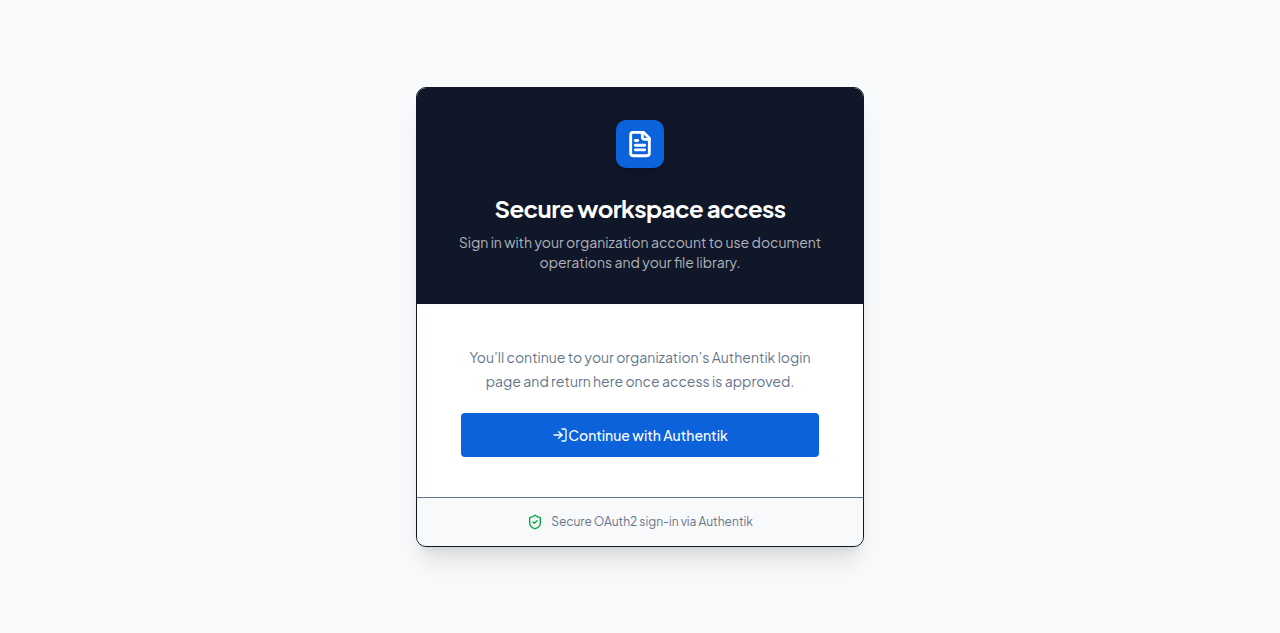 Figure: the sign-in screen.
To sign in:
- Select Continue with Authentik.
- You are sent to your organisation's own login page — this is the same login your other work accounts already use, not a new DocuFlow-specific one. The screen tells you: "You'll continue to your organization's Authentik login page and return here once access is approved."
- Sign in there as usual. You are brought back to DocuFlow automatically once access is approved.
While you're being brought back, you'll briefly see "Completing your secure sign-in…" — this is normal and passes on its own.
What you'll see when it's done: you land on the Tools page (see Tools), signed in, with your name shown in the account menu in the top right.
- If your previous session simply ran out, you'll see "Your session has expired. Please sign in with Authentik again to continue." — sign in again the same way.
- If your session stopped being accepted, you'll see "Your session is no longer valid with the Utility Engine. Please sign in with Authentik again." — sign in again.
- If the sign-in page itself can't be set up, you'll see "Authentik setup required" with a line naming the missing setting — this is something your administrator needs to fix, not something you can work around.
- If you're sent back after the login page but it didn't finish, you'll see "Sign-in could not be completed" with "Return to the sign-in page and try again." — select Return to sign in and try once more.
Note that DocuFlow itself never asks you to type a password — that only happens on your organisation's own login page in step 2. If a screen asking for a DocuFlow-specific password ever appears, it isn't part of this flow.
Signing in is the same process everywhere DocuFlow asks for it — the web app's sign-in page and, if you choose to sign in there, the desktop app's sign-in button both take you through the same organisation login page and the same steps above.
Signing out
Your account menu, in the top right, has a Log out button.
To sign out: select Log out.
What you'll see when it's done: you are returned to the sign-in page. On desktop, signing out also forgets your offline workspace — the app no longer has access to the files and changes you had queued for that account until you sign in again as the same person.
This is different from your session simply expiring while you're away (see the notices under Signing in): selecting Log out is a deliberate action, and only a deliberate log-out on desktop forgets the offline workspace. A session that expires on its own leaves your offline work in place, ready to pick up once you sign in again.